Upscale images up to 4×
Free AI image upscaler for JPG, PNG and WebP. Make small or blurry images bigger and sharper, compare before and after, and download. No sign-up.
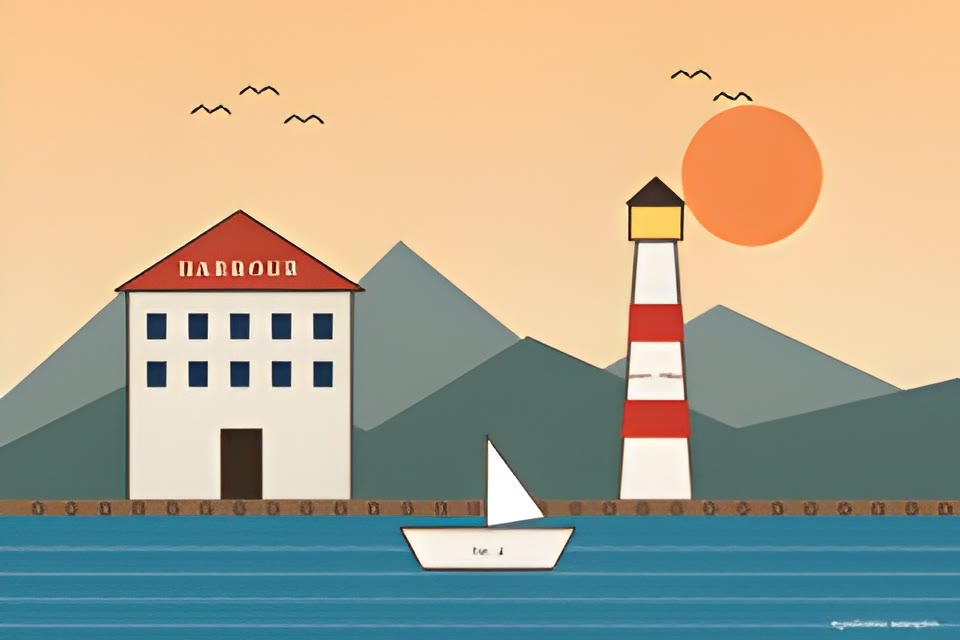
or drop a file here
Choose a mode to process this image.
How to upscale an image online
- Upload your images
Choose one or several JPG, PNG or WebP files. Each one keeps its own results.
- Choose an upscale mode
Use Resample, Premium 4×, or one of the AI restoration profiles.
- Compare before and after
Drag the divider over the image and zoom into fine detail.
- Download the result
Save the processed JPEG. No account setup is required.
Choose the right method for the image
Not every image needs aggressive AI reconstruction. Start with the least invasive option and move to restoration only when it helps.
Resize
- Resample
- Fast, clean enlargement for graphics, screenshots and images that already have good detail.
- Premium 4×
- Fixed 4× enlargement for larger output. Very large source images can be fitted to stay within output limits.
AI restoration
- Safe
- Minimal AI restoration when you want to preserve identity and fragile facial details.
- GFPGAN
- Balanced portrait cleanup with moderate face reconstruction.
- CodeFormer
- Detail-focused face restoration with more control over identity drift.
- Restore
- Stronger restoration for noticeably blurred or damaged faces.
What can you upscale?
Increase resolution and, when needed, restore facial detail with a dedicated AI profile.
Prepare cleaner, larger images for listings, presentations, marketplaces or storefronts.
Enlarge generated artwork while checking edges and textures at high zoom.
Try a conservative upscale first, then compare an AI-restored variant if the source has lost facial detail.
Make an image larger while keeping control over the result
Image Upscaler is built for quick enlargement jobs rather than a full design workflow. Upload several images, choose a processing mode for each one, inspect the result with the draggable before-and-after divider, then download the version you want.
For straightforward resizing, Resample keeps the workflow conservative. For larger output, Premium 4× upscaling enlarges the image four times per side when output limits allow. Portrait-focused AI modes can restore facial detail when a simple resize is not enough.
Image upscaling questions
How do I upscale an image online?
Upload a JPG, PNG or WebP image, choose an upscale mode, wait for processing, compare the original and result, then download the processed image.
What is the difference between Resample and Premium 4×?
Resample performs a clean enlargement without face reconstruction. Premium 4× is intended for a larger four-times-per-side output, subject to output-size limits.
Can I upscale several images in one session?
Yes. You can add multiple images and switch between them in the file list. Each source keeps its own generated variants.
Which image formats are supported?
The public tool accepts JPEG, PNG and WebP files. The upload panel shows the active size and resolution limits.
Do I need an account?
No account is required for the current public workflow. Anonymous processing limits still apply.
Are uploaded images public?
No. Files are handled as private, short-lived processing data. See the privacy and retention page for the current retention and deletion behavior.